
Sending Meeting Invites
Last updated
1. Overall Process & Purpose
What This Feature Does
The Meeting Invite feature allows recruiters to schedule an interview at a specific date and time and send a formal calendar invite directly to the applicant and interviewers. This option is best used when the interview time is already known and agreed upon internally.
Why This Feature Exists
Meeting Invites exist to:
- Eliminate manual calendar coordination
- Ensure consistent interview communication
- Automatically track interview events within ATS360
- Trigger interviewer feedback workflows
Value Provided
- Recruiters can schedule interviews quickly and accurately
- Interviewers receive calendar invites and feedback forms automatically
- Candidates receive clear, confirmed interview details
2. Definitions
| Term | Definition |
|---|---|
| Send Meeting Invite | Action that creates a scheduled interview event |
| Interview Event | Record containing interview date, time, duration, and participants |
| Interview Duration | Length of the interview (e.g., 30, 60 minutes) |
| Feedback Form | Interviewer evaluation form linked to the interview |
| Attach Candidate Resume | Option to include the resume in the interview invite |
| Default HR | System-defined sender for interview emails |
| Current User | Logged-in recruiter sending the invite |
3. Step-by-Step Directions
Step 1: Start the Meeting Invite
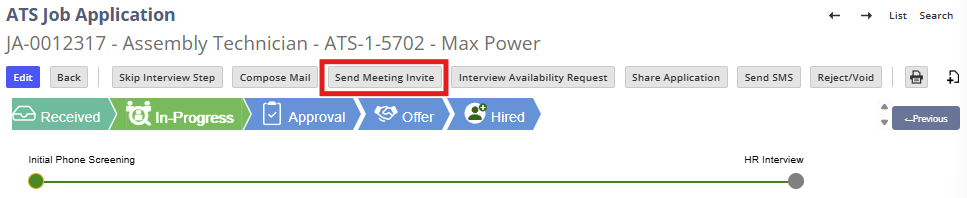
- Open the applicant’s Job Application
- Confirm the application is in an Interview stage
- Click Send Meeting Invite
You will be redirected to the interview scheduling screen.
Step 2: Set Interview Date and Time
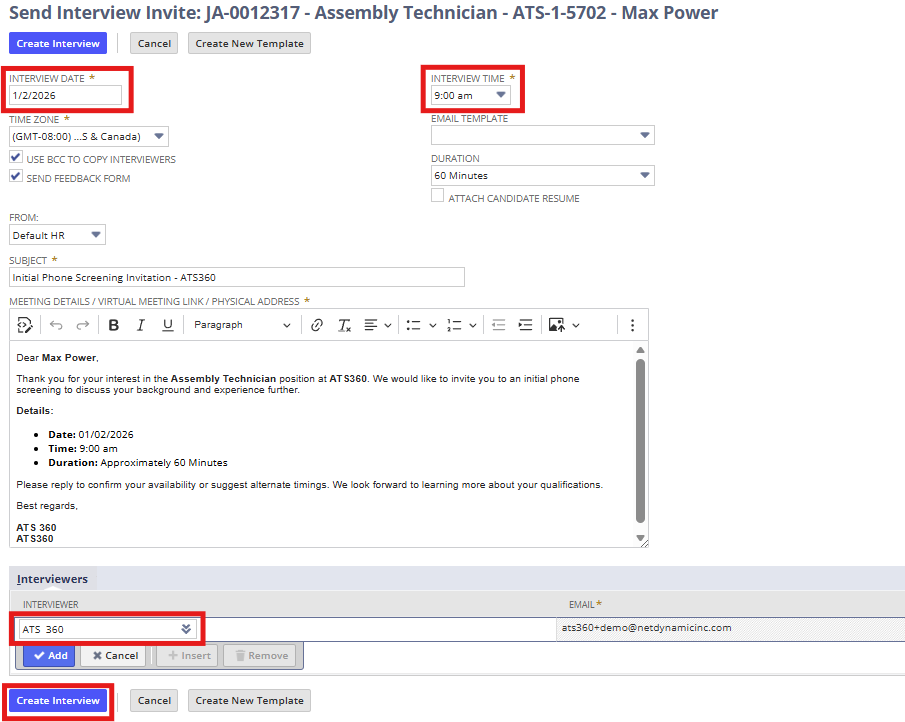
- Select the Interview Date
- Confirm the Time Zone (auto-populated based on your system)
- Select the Start Time
- Choose the Interview Duration
Required Fields
- Date
- Time
- Duration
Step 3: Configure Email and Calendar Options
- Review auto-selected options:
- BCC Interviewers
- Send Interview Feedback Form
- Choose an Email Template (if applicable)
- Edit:
- Subject line
- Email body (optional)

Step 4: Select Interviewers
- Add one or more interviewers
- Interviewers may include:
- Recruiters
- Hiring managers
- Additional team members
System Behavior
- Interviewers receive:
- Calendar invitation
- Feedback form email (if selected)

Step 5: Optional Attachments and Sender
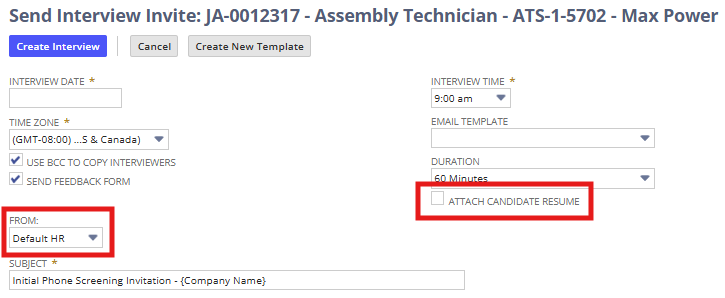
- Select Attach Candidate Resume if needed
- Choose the sender:
- Default HR
- Current User
Step 6: Create the Interview Event
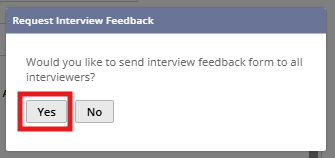
- Review all details
- Click Create Interview
- Confirm sending the interview feedback form when prompted
Step 7: Review the Interview Event
After creation, you are redirected to the Interview Event record, where you can:
- Review date, time, and participants
- View the email content sent
- Set interview reminders
- Add notes or files
Step 8: Return to the Application Record
- Navigate back to the Job Application
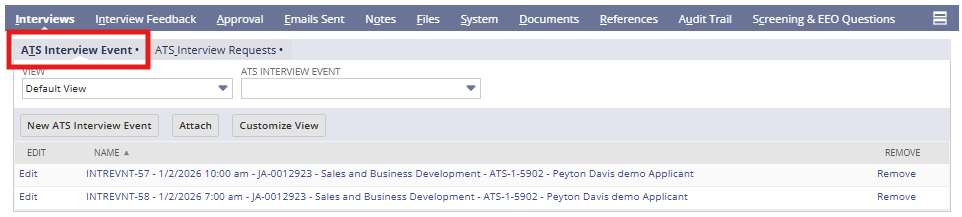
- Open the Interviews Subtab
You will see:
- The newly created Interview Event
- Associated email activity in Email Sent
4. Summary of Outcome
When a Meeting Invite is completed successfully:
- A formal interview event is created in ATS360
- Calendar invitations are sent to all participants
- Interviewer feedback forms are distributed
- Interview details are fully traceable on the application record
- The applicant progresses cleanly through the interview stage
The Meeting Invite feature provides a structured, low-friction way to schedule interviews within ATS360.