
Interview Availability Requests
Last updated
1. Overall Process & Purpose
What This Feature Does
The Interview Availability Request allows recruiters to propose multiple possible interview times and let the applicant select the option that works best for them. Once the applicant confirms a time, ATS360 automatically creates the interview event.
Why This Feature Exists
This feature exists to:
- Reduce back-and-forth scheduling emails
- Allow flexibility when interview times are not yet fixed
- Streamline coordination across multiple interviewers
- Automatically convert availability selections into interview events
Value Provided
- Recruiters avoid manual scheduling coordination
- Applicants can choose a time that fits their schedule
- Hiring teams receive confirmed interviews without follow-up
2. Definitions
| Term | Definition |
|---|---|
| Interview Availability Request | Email allowing a candidate to choose from proposed interview times |
| Proposed Times | Multiple dates and times entered by the recruiter |
| Interview Request Record | ATS record storing availability options and responses |
| Confirm Availability | Applicant action that finalizes the interview time |
| Interviewers Subtab | Section where interview participants are assigned |
3. Step-by-Step Directions
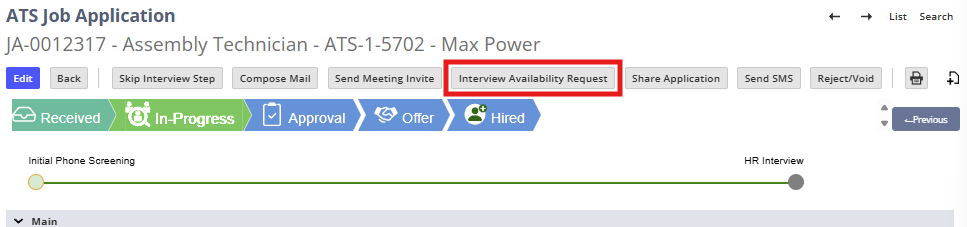
Step 1: Start the Availability Request
- Open the applicant’s Job Application
- Confirm the application is in an Interview stage
- Click Interview Availability Request
You will be taken to the availability request setup screen.
Step 2: Configure Email Options
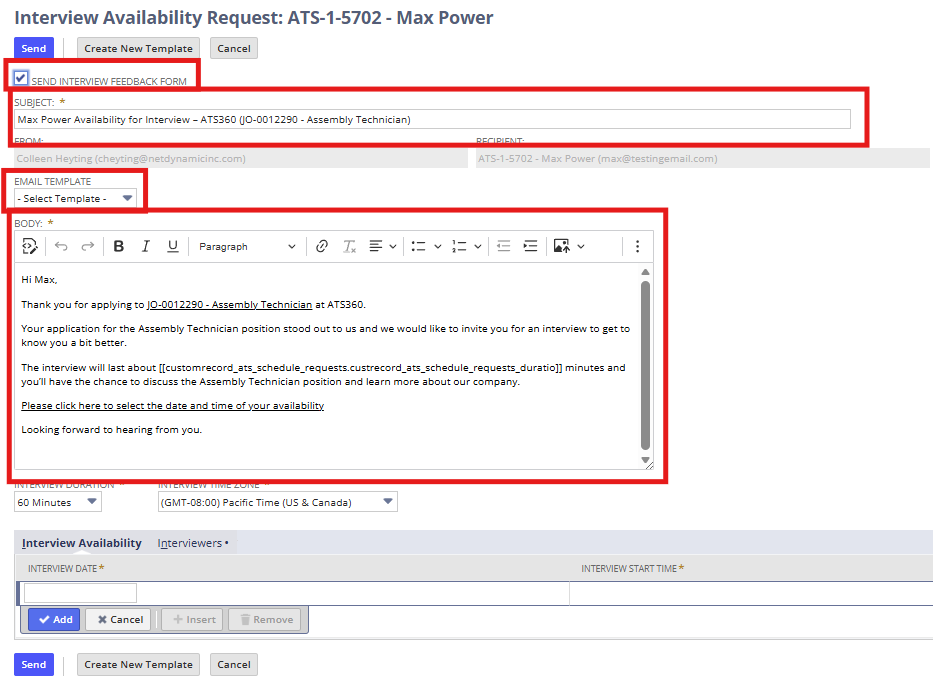
- Review or update:
- Subject
- Email Body
- Select an Email Template if multiple templates exist
- Confirm Send Interview Feedback Form is selected (auto-populated)
Step 3: Set Interview Duration and Time Zone
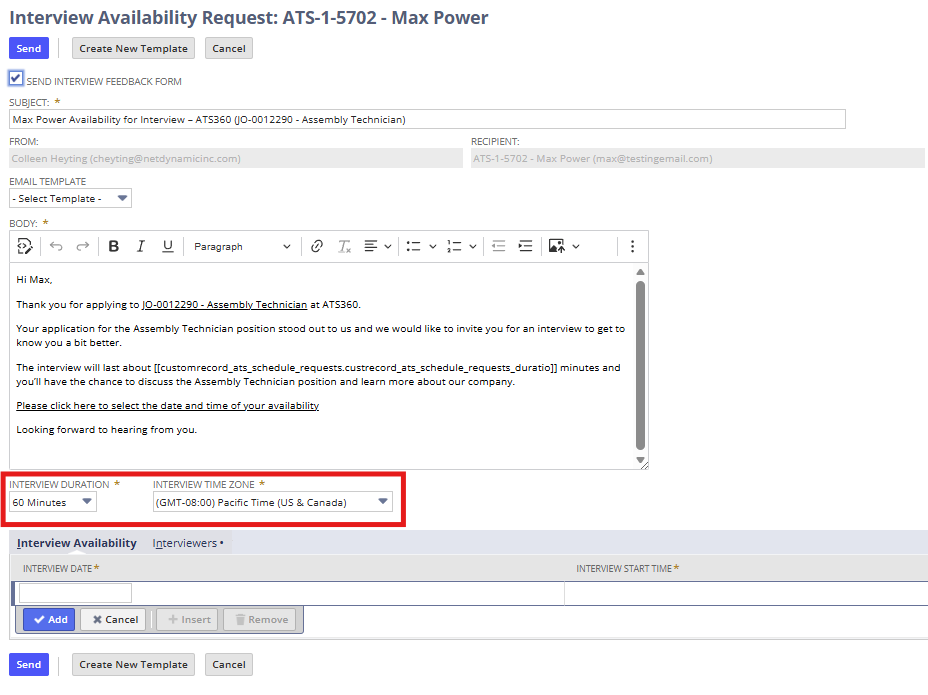
- Select the Interview Duration
- Confirm the Time Zone
- Auto-populated from system settings
- Can be manually adjusted if needed
Step 4: Add Proposed Interview Times
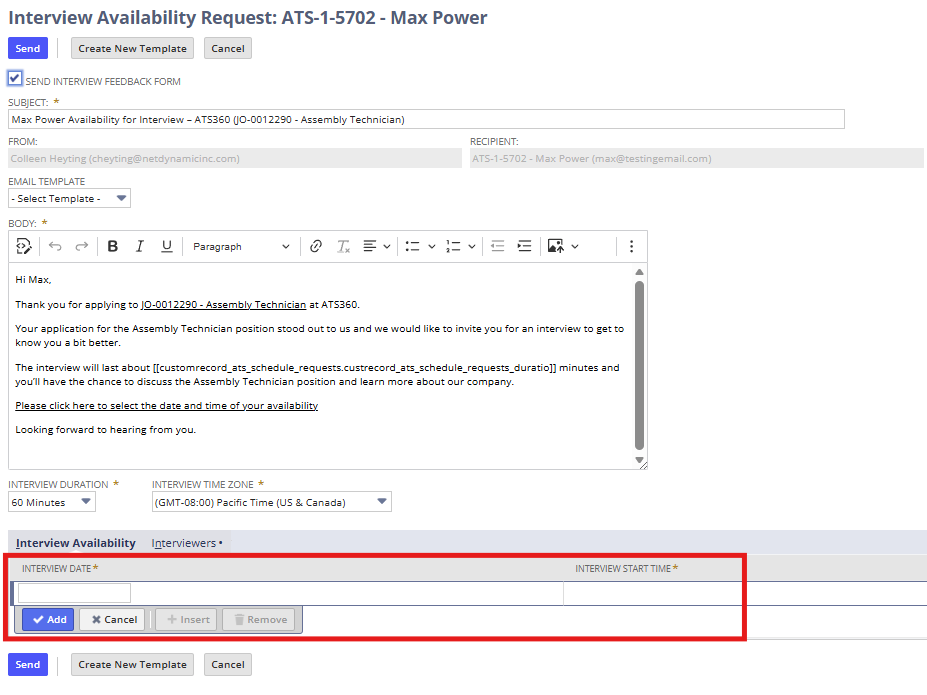
- Enter the first Date and Time
- Click to add additional dates and times
- Continue until all acceptable options are listed
Best Practice
- Provide at least 2–3 time options to avoid rescheduling
Step 5: Assign Interviewers
- Open the Interviewers subtab
- Review default interviewer (creator of the request)
- Add or remove interviewers as needed

Step 6: Send the Availability Request
- Review all details
- Click Send

System Behavior
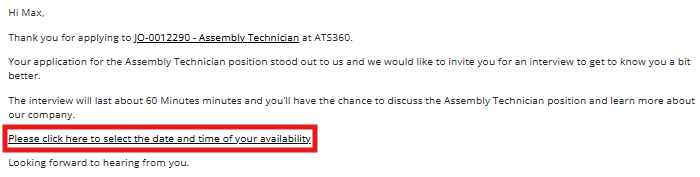
- The applicant receives an email with:
- A congratulatory message
- A list of selectable interview times
- An option to indicate unavailability and add comments
Step 7: Applicant Confirms Availability
From the applicant’s perspective:
- Applicant clicks the link in the email
- Selects one proposed time or
- Indicates none of the times work and adds comments
- Clicks Confirm Availability
Step 8: System Creates Interview Event
Once availability is confirmed:
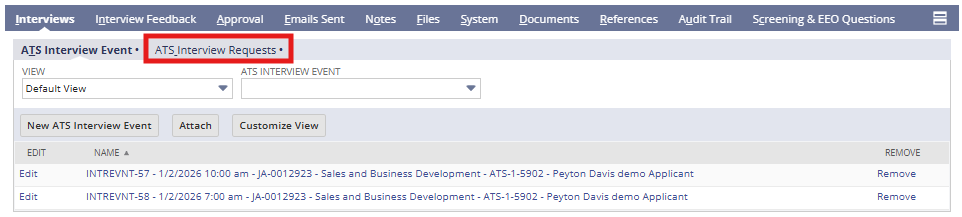
- ATS360 automatically creates an Interview Event
- The confirmed time appears in:
- Interviews Subtab
- Email Sent Subtab
4. Summary of Outcome
When an Interview Availability Request is completed successfully:
- The applicant selects a preferred interview time
- An interview event is automatically created
- Interviewers are notified
- Feedback workflows are prepared
- The interview stage progresses without manual coordination
The Availability Request feature provides a candidate-friendly, efficient scheduling option within ATS360.