
Job Posting Overall Workflow – Creating to Closing
Last updated
1. Overall Process & Purpose
The Job Posting workflow in ATS360 manages the full lifecycle of a position, from initial creation through publishing, candidate management, and eventual closure or unpublishing.
This workflow exists to:
- Centralize all job-related information in a single record
- Control how and where jobs are published
- Manage candidate intake and collaboration with hiring managers
- Ensure accurate tracking, reporting, and compliance throughout the hiring process
Value Provided
- Recruiters gain a structured, repeatable process for posting jobs, managing applicants, and progressing hires.
- Hiring Managers receive controlled access to review and screen candidates without needing full ATS access.
- HR & Administrators benefit from consistent data, auditability, and visibility into job status, timelines, and outcomes.
2. Definitions
| Term | Definition |
|---|---|
| Job Posting | A central ATS360 record that defines an open position, controls publication, and stores all related applications, settings, and activity. |
| Career Portal (External / Internal) | Web portals where candidates view job postings. External portals are public-facing; internal portals are restricted to internal candidates. |
| Easy Apply Portal | The application interface where candidates enter their information, answer screening and EEO questions, and submit applications. |
| Portal Link Active | A control checkbox that publishes or unpublishes a job posting without closing it. |
| Hiring Manager | A user granted access to screen candidates for a specific job via the Hiring Manager Portal. |
| Recruiter | The primary owner of the job posting who manages candidates, interviews, approvals, and offers. |
| Screening Question Group | A predefined group of job-specific questions presented to candidates during application. |
| EEO Question Group | A predefined group of Equal Employment Opportunity questions shown separately during application for compliance and reporting. |
| Job Status | A system-controlled state indicating whether a job is in Draft, Open, Closed, or other system states. |
3. Step-by-Step Directions
Step 1: Access the Job Posting Module
- Log in to ATS360.
- Navigate to the ATS Overview dashboard using either:
- The Home icon, or
- ATS > ATS Overview from the top navigation.
- Locate the left-hand navigation panel.
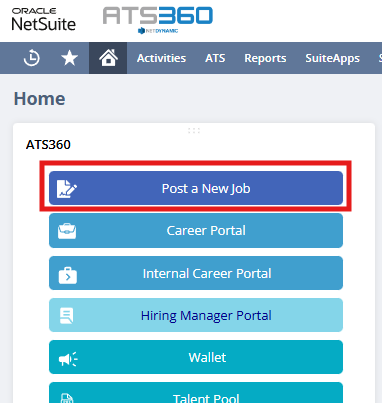
- Click Post a New Job.
System Behavior: A new Job Posting record opens in edit mode.
Step 2: Create and Configure the Job Posting
- Complete the required job posting fields (e.g., Job Title, Job Type, Location, Department).
- Add optional job details such as compensation, job requirements, and hiring staff.
- Assign:
- A Recruiter (required)
- One or more Hiring Managers (required)
- Select Screening Question Groups and EEO Question Groups if applicable.
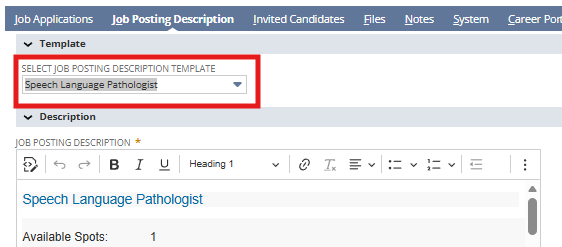
- Under the Job Posting Description Subtab, select a description.
- Save the Record.
Required vs Optional:
- Required fields must be completed before saving.
- Screening, EEO, and video prescreening questions are optional, among others.
System Behavior:
- The job is created in an Open and Published state by default.
- The Portal Link Active checkbox is automatically enabled.
Step 3: Publish and Advertise the Job
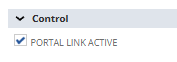
- Confirm the Portal Link Active checkbox is enabled.
-
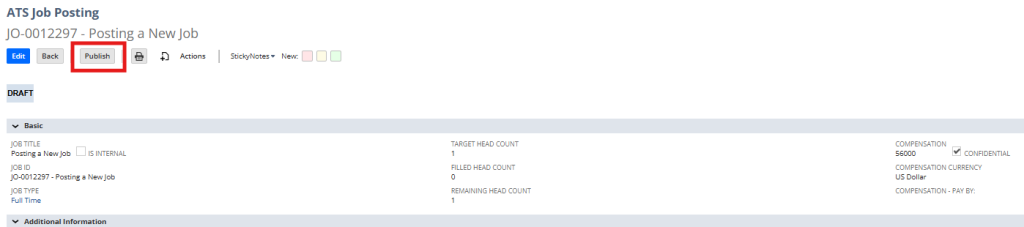
Publish the Job Posting.
-
If configured, the job becomes visible on:
- External career portals
- (Optionally) Internal career portals
- Organic Posting Network (OPN) and XML job feeds
Conditional Path:
- If Portal Link Active is unchecked, the job remains open internally but is not visible to candidates.
Step 4: Collect and Manage Applications
- Candidates apply through the Career Portal using the Easy Apply Portal.
- Applications appear under the Job Applications subtab.
- Recruiters and Hiring Managers review applications based on assigned permissions.
System Behavior:
- Screening questions appear first during application.
- EEO questions appear in a separate step after screening questions.
- If no questions are assigned, those steps are skipped automatically.

Step 5: Ongoing Job Management
Recruiters may:
- Invite candidates to apply
- Share applications with other staff
- Add notes and files
- Perform bulk actions on applications
- Adjust hiring managers or recruiters
Hiring Managers may:
- Screen candidates
- Provide feedback through the Hiring Manager Portal

Step 6: Unpublish or Close the Job Posting
Unpublishing a Job
- Edit the Job Posting record.
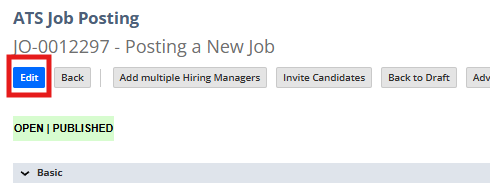
- Uncheck Portal Link Active.
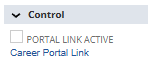
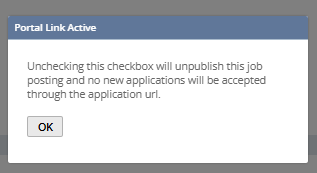
- Confirm Portal Link Active Checkbox
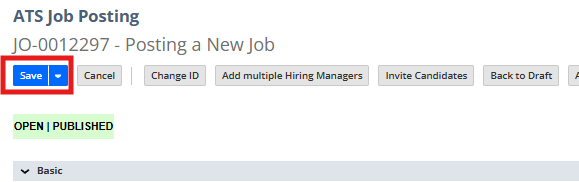
- Save the record.
Outcome:
- The job is removed from career portals and job boards.
- Existing applications remain accessible.
- No new applications can be submitted.
Closing a Job
- Close the job after hiring or deciding not to hire by selecting the Close Job Posting button.

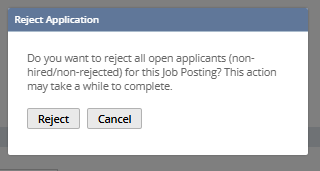
- Reject Open Applications, if the position wasn’t partially filled.
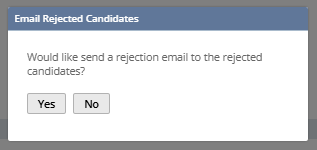
- Confirm whether a rejection email should be forwarded to the applicants.
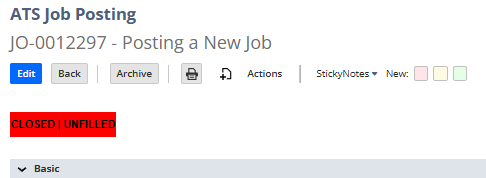
- A Reason for Closed Opening is recorded automatically.
- The Closed Date is set by the system.
Conditional Paths:
- Jobs may be closed with or without a hire.
- Job behavior may differ based on workflow configuration or approval processes.
4. Summary of Outcome
When the Job Posting workflow is completed correctly:
- The job has progressed from creation to closure or unpublishing.
- All applications, notes, and decisions are retained for reporting and audit purposes.
- Hiring activity is fully documented within ATS360.
- Recruiters can proceed to onboarding (if hired) or conclude the requisition cleanly.
This workflow ensures consistent, controlled hiring practices across the organization while maintaining flexibility for different hiring needs and configurations.