
Creating a Job Posting
Last updated
1. Overall Process & Purpose
The Creating a Job Posting stage is where recruiters define the position details, assign hiring staff, and configure how candidates will apply to the role. This stage establishes the foundation for candidate intake, screening, and collaboration throughout the hiring process.
It is important to properly create Job Postings in order to:
- Capture consistent, structured job information
- Control application flow and required questions
- Ensure the right stakeholders are assigned from the start
Value Provided
- Recruiters can quickly launch standardized, compliant job postings.
- Hiring Managers are correctly linked to the job for screening and feedback.
- HR & Administrators gain reliable data for reporting, approvals, and downstream processes.
2. Definitions
| Term | Definition |
|---|---|
| Job Title | The official title of the position. This field is externally visible and appears on career portals, job boards, and candidate applications. |
| Job Status | Indicates the current state of the job posting (e.g., Draft, Open, Closed). Job Status controls whether candidates can apply and how the job appears in reporting. |
| Job Type | Defines the employment type (e.g., Full-Time, Part-Time, Contract). This field is externally visible and may affect job board distribution. |
| Work Location | The primary work location associated with the job posting. This field is externally visible and used for job searching, filtering, and job board feeds. |
| Department | The internal department responsible for the role. This field may be visible internally and used for reporting and approvals. |
| Job Description | The detailed description of the role, including responsibilities and qualifications. This content is externally visible on career portals and job boards. |
| Compensation / Pay Information | Optional compensation details associated with the role. Visibility depends on configuration and compliance requirements. |
| Recruiter | The primary owner of the job posting responsible for managing candidates, workflow, and job-level actions. |
| Hiring Manager | One or more users responsible for reviewing, screening, and providing feedback on candidates for this job. |
| Screening Question Group | A predefined set of job-specific questions presented to candidates during the application process via the Easy Apply Portal. |
| EEO Question Group | A predefined set of Equal Employment Opportunity questions displayed in a separate application step for compliance and reporting purposes. |
| Portal Link Active | A checkbox that controls whether the job posting is published and externally visible to candidates on career portals and job boards. |
| Career Portal Visibility | Determines whether the job appears on external and/or internal career portals. Visibility may differ based on configuration. |
3. Step-by-Step Directions
Step 1: Start a New Job Posting
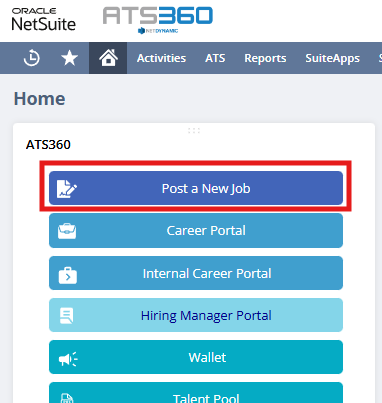
- From the ATS Overview dashboard, click Post a New Job.
- A new Job Posting record opens automatically in edit mode.
System Behavior: The job posting is created in an editable state with required fields highlighted.
Step 2: Complete Core Job Details
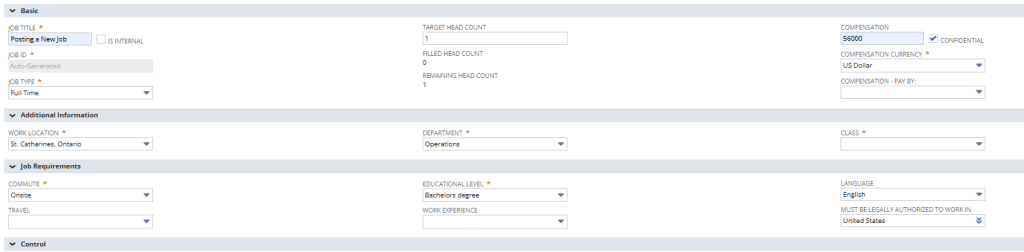
- Enter the Job Title.
- Select the Job Type.
- Choose the Location.
- Select the appropriate Department.
Required vs Optional:
- These fields are typically required.
- Field availability may vary by company configuration.
Step 3: Assign Hiring Staff
- Select a Recruiter for the job posting.
- Add one or more Hiring Managers.
System Behavior:
- Assigned Hiring Managers gain access to screen candidates via the Hiring Manager Portal.
- Multiple Hiring Managers may be assigned if enabled.

Step 4: Configure Job Description and Additional Details
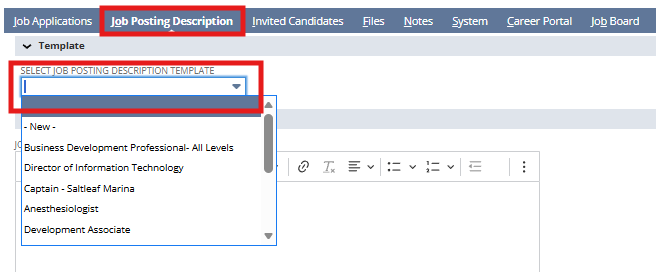
- Enter the Job Description.
- Add optional details such as:
- Responsibilities
- Qualifications
- Compensation information (if applicable)
Step 5: Assign Screening and EEO Questions
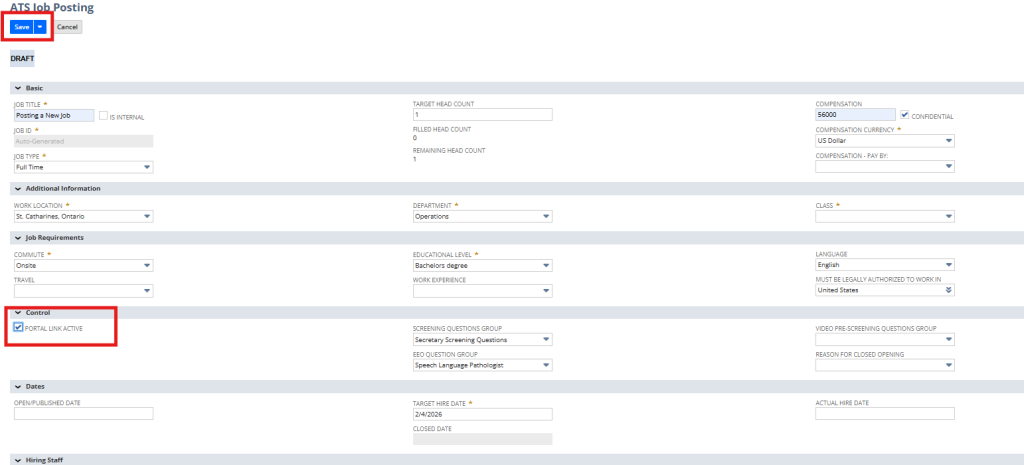
- Select a Screening Question Group if applicable.
- Select an EEO Question Group if applicable.
System Behavior:
- Screening questions appear externally in the Easy Apply Portal.
- EEO questions appear in a separate step after screening questions.
- If no question groups are assigned, those steps are skipped automatically.
Optional Add-On:
- Video prescreening questions may be available as a paid add-on, depending on configuration.

Step 6: Review and Save the Job Posting
- Review all entered information for accuracy.
- Confirm Portal Link Active is enabled if the job should be visible to candidates.
- Click Save.
System Behavior:
- The job is saved as Open and Published by default.
- The job becomes visible on configured career portals and job feeds.
4. Summary of Outcome
When a Job Posting is created successfully:
- The job record exists in ATS360 with all required details.
- Hiring staff are assigned and can begin reviewing candidates.
- The job is visible to candidates if published.
- The system is ready to accept applications through the Easy Apply Portal.
This stage ensures all foundational job information is captured before candidate activity begins.