
Application Received Stage — Subtabs
Last updated
1. Overall Process & Purpose
What This Section Does
The Subtabs on the Job Application record organize all supporting information related to an applicant as they move through the hiring process. In the Received stage, these subtabs begin capturing system activity, communications, documents, and historical data that will follow the applicant through every subsequent stage.
Why This Section Exists
Subtabs exist to:
- Keep the main application form uncluttered
- Provide structured storage for interviews, emails, notes, and files
- Maintain a complete audit trail without relying on external systems
Value Provided
- Recruiters gain a single source of truth for all applicant activity
- Hiring Managers can review interviews, feedback, and communication history
- HR benefits from traceability, compliance support, and record retention
2. Definitions
| Subtab | Definition |
|---|---|
| Interviews | Displays interview events and interview requests |
| Interview Feedback | Stores completed interviewer feedback forms |
| Approval | Displays approval activity if an approval workflow is enabled |
| Email Sent | Logs all system and manual emails related to the applicant |
| Notes | Stores user-entered notes and system-generated notes |
| Files | Repository for uploaded applicant-related files |
| System | Tracks automation-driven stage changes and testing controls |
| Documents | Stores generated documents such as offer letters |
| References | Displays reference requests and responses |
| Audit Trail | Condensed history of key record changes |
| Screening & EEO Questions | Displays applicant responses from the application |
3. Step-by-Step Directions
Step 1: Access the Subtabs
- Open a Job Application
- Scroll to the bottom of the application record
- Select the desired subtab
All subtabs are available immediately upon application creation.
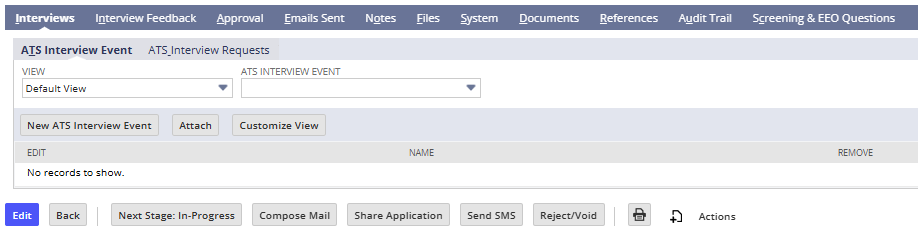
Step 2: Review the Interviews Subtab
What You’ll See
- ATS Interview Events (empty at Received stage)

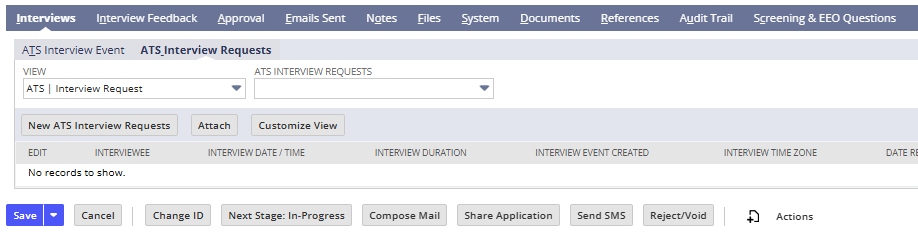
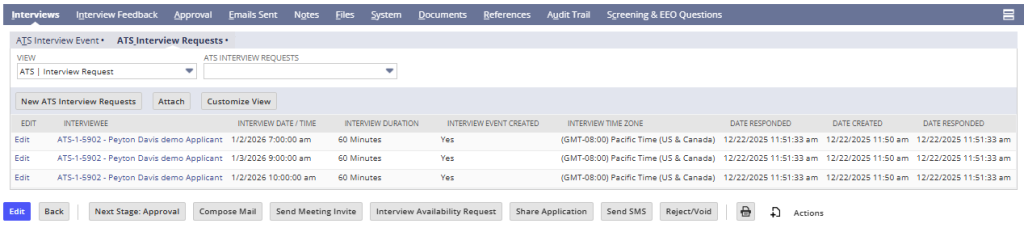
- ATS Interview Requests (empty initially)
System Behavior
- This subtab auto-populates as interview invites or availability requests are sent
- Each interview created later in the process appears here for quick reference
Step 3: Review the Interview Feedback Subtab
Initial State
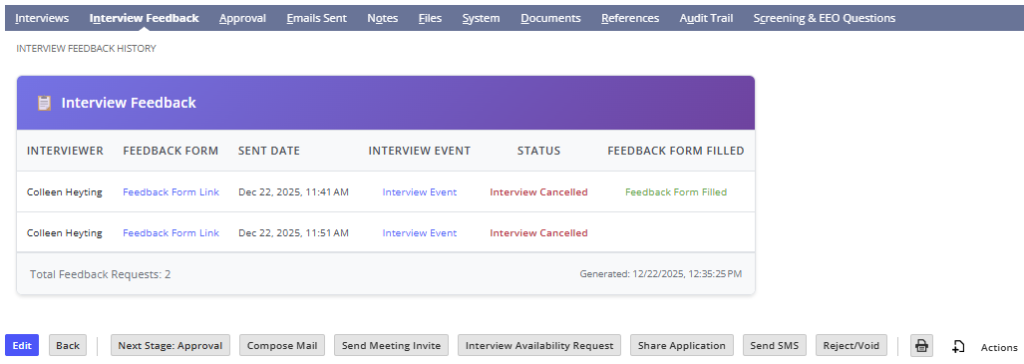
- Empty during the Received stage

Future Behavior
- Populates once interview feedback forms are sent and completed
- Displays interviewer name, form status, and rating
Step 4: Review the Approval Subtab (If Enabled)
Configuration-Dependent
- Only visible and populated if your company uses approval workflows
Displays
- Approver name(s)
- Approval status
- Approval dates


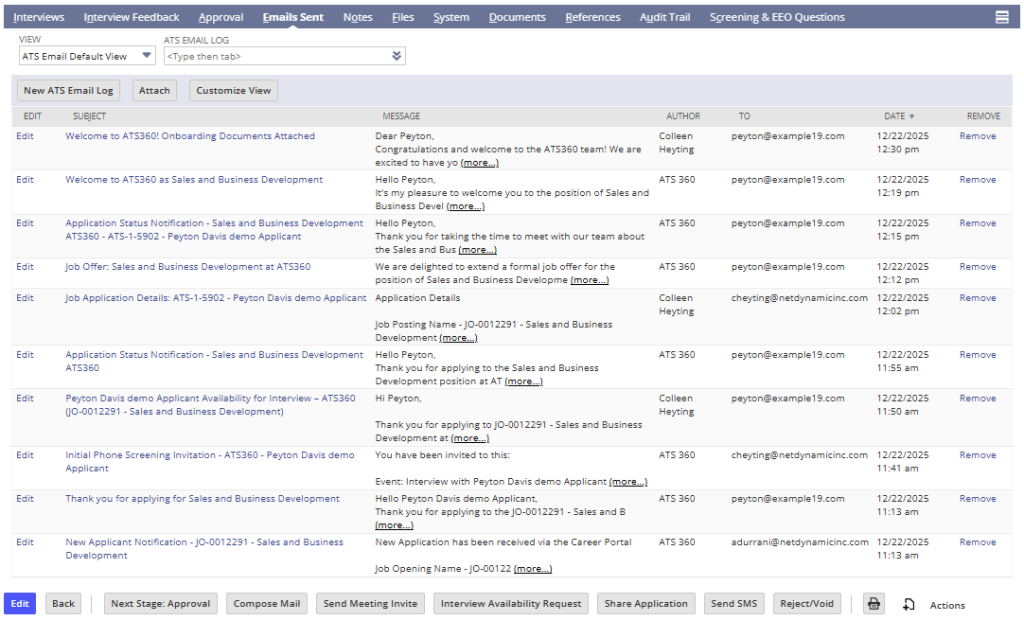
Step 5: Review the Email Sent Subtab
- Open the Email Sent subtab
What Appears Automatically
- Confirmation email sent to the applicant after applying
- Internal notification email sent to the recruiter
Ongoing Use
- Every email sent via the following, is logged here automatically:
- Compose Mail
- Interview invites
- Availability requests
- Offers
- Rejections
This is one of the most critical subtabs for day-to-day recruiting work.
Step 6: Use the Notes Subtab
The Notes subtab contains two sections:
User Notes
- Click New Note
- Enter:
- Title
- Memo (details of call, decision, or context)
- Click Save
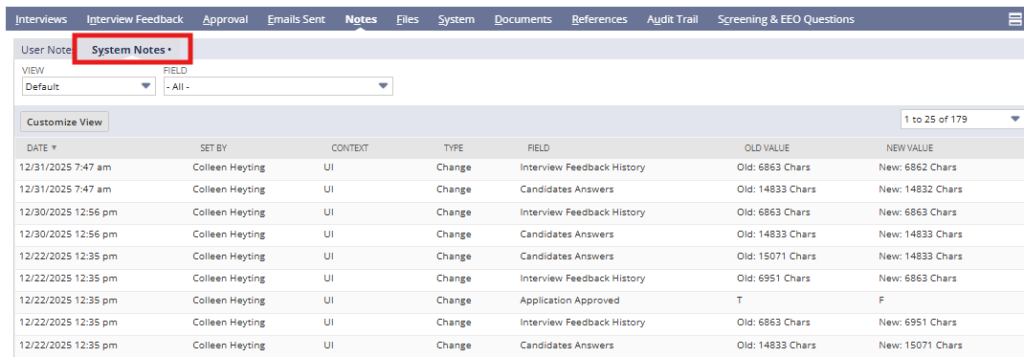
System Notes
- Automatically logs all system-driven changes
- Includes automation and background scripting activity
- Read-only
Step 7: Review the Files Subtab
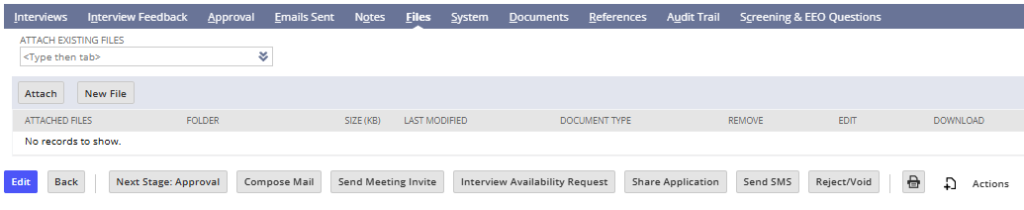
- Click New File to upload documents manually
- Or attach existing files from the NetSuite file cabinet
Typical Files
- Additional resumes
- Certifications
- Supporting documents
Step 8: Review the System Subtab
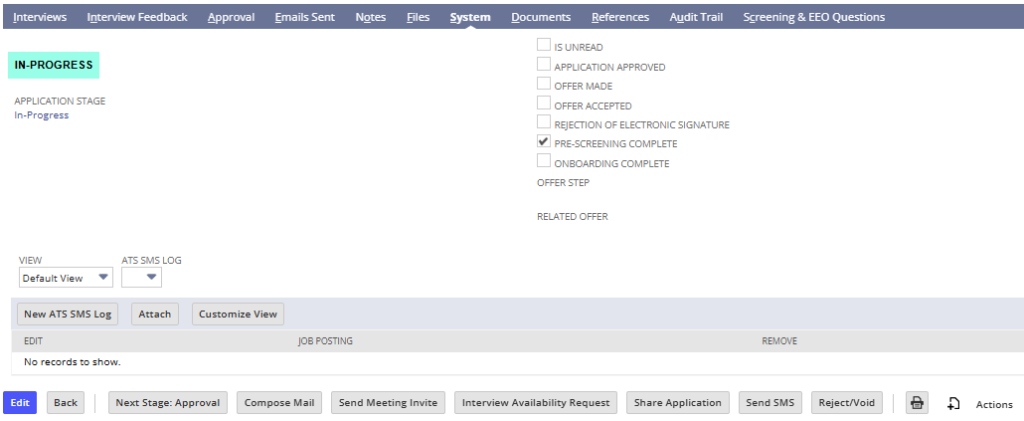
Purpose
- Displays stage-related automation checkboxes
- Primarily used for:
- System tracking
- Testing environments
Important Notes
- Not intended for day-to-day recruiter workflow
- Includes “Previous” and edit options for correcting accidental progression during testing
Step 9: Review the Documents Subtab
Initial State
- Empty during Received stage
Future Use
- Stores generated documents such as offer letters, signed PDFs(if e-signature enabled) and Pre-hire portal documents(if enabled)
- Automatically populated as the applicant progresses

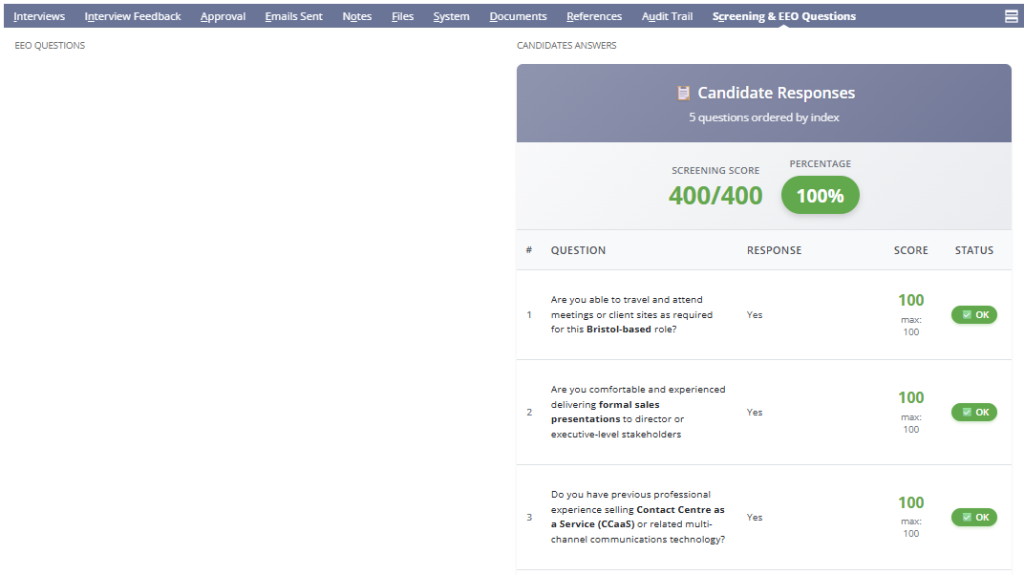
Step 10: Review Screening & EEO Questions
- Open Screening & EEO Questions
What Appears
- All screening questions answered during application
- All EEO responses (if configured)
System Behavior
- These answers are also linked to the contact record
- Fields are read-only at this stage
Step 11: Review the Audit Trail
Purpose
- Provides a focused summary of key record changes
- Easier to review than full system notes

4. Summary of Outcome
When the subtabs are reviewed in the Received stage:
- All applicant-related activity is centralized and traceable
- Recruiters can confidently reference communications and data
- The record is fully prepared for interviews, approvals, and offers
- No information is lost as the applicant moves forward
The Subtabs ensure continuity, transparency, and accountability throughout the ATS360 hiring lifecycle.