
Setting Up E-Signature
Last updated
1. Overall Process & Purpose
What This Feature Does
The E-Signature feature within the Offer Management stage allows recruiters to generate offer letters, configure digital signature fields, and send them directly to candidates and internal signers . It supports adding additional documents for review and requires candidates to acknowledge and sign documents before accepting an offer .
Why This Feature Exists
This feature exists to:
- Eliminate the need for external signing agencies (e.g., DocuSign) .
- Remove the manual process of uploading signed hard copies .
- Solve tracking issues regarding how and when a candidate signs .
Value Provided
- Recruiters save time by managing the entire signing process within ATS360 without leaving the platform .
- Hiring Managers can quickly review signed offer letters and sign documents themselves if required .
- HR gains flexibility in storing, referencing, and documenting offers shared with candidates .
2. Definitions
| Term | Definition |
|---|---|
| Generate Offer | Action button that initiates the creation of the offer letter PDF based on a selected template . |
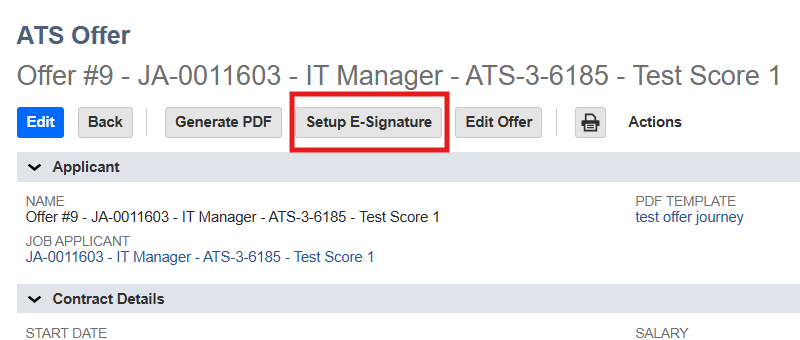
| Setup E-Signature | Action button that appears after a PDF is generated, allowing the user to configure signature fields . |
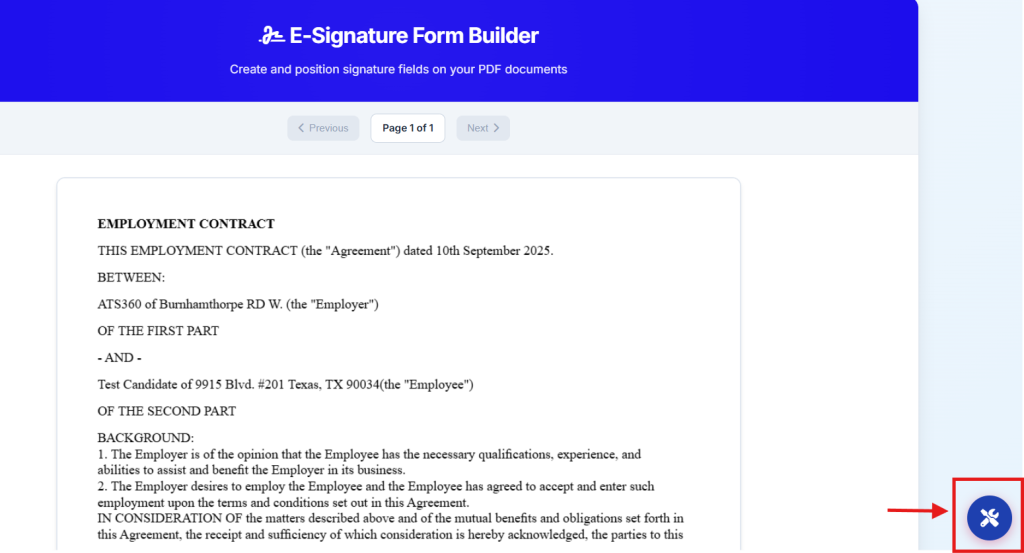
| Toolbox | The menu located in the bottom right corner used to add signers (Employees, Contacts, Candidates) to the document . |
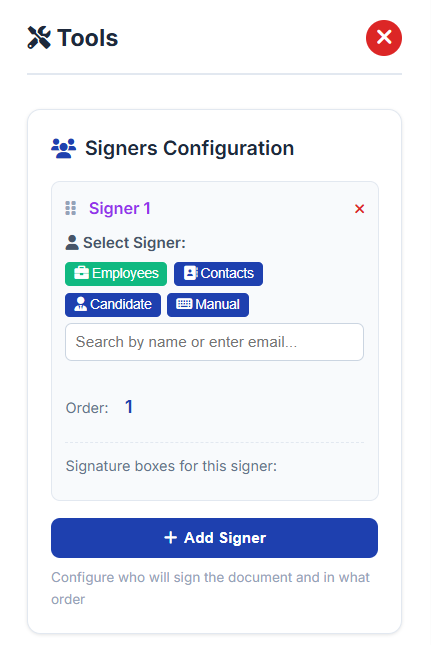
| Signer: Candidate | Selects the applicant as the signer; automatically pulls their name and email from the application record . |
| Signer: Employee | Allows the user to search for and select internal staff (e.g., Hiring Managers or HR) as signers . |
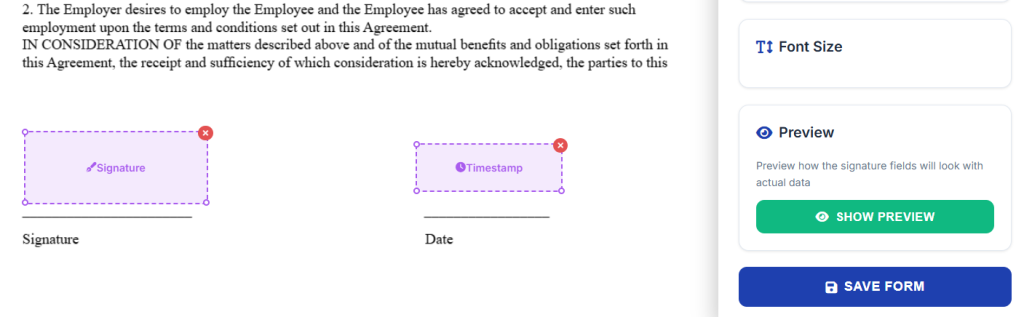
| Signing Elements | The specific fields placed on the document for the user to complete, including Signature, Print Name, Timestamp, and Initials . |
3. Step-by-Step Directions
Step 1: Generate the Offer PDF
- Navigate to the candidate's record in the Offer Stage.
- Click the Generate Offer button .
- Select the appropriate PDF template and populate all necessary fields (e.g., Start Date, Compensation, Supervisor Name) .
- Save the form and click Generate PDF .
- Review the PDF.
- If edits are required, click Edit Offer Letter, make changes, and click Generate PDF again to save the final version .
- If the PDF is correct, proceed to Step 2.
Step 2: Configure Signers
- Click the Setup E-Signature button .
- Open the Toolbox in the bottom right corner .
- Select the Signer Type:
- Candidate: Automatically pulls the candidate's name and email .
- Employee: Search for an internal user (e.g., Hiring Manager) by name .
- Contact/Manual: Use for external contacts or manual email entry .
- Click Add Signer for each individual required to sign the document .
Step 3: Place Signing Elements
- Select a specific signer (e.g., the Candidate) .
- Drag and drop the required elements onto the document:
- Signature box
- Timestamp
- Print Name (optional)
- Initials (optional)
- Repeat this process for any additional signers (e.g., Hiring Manager) .
Step 4: Formatting and Preview
- To adjust text size, check the box Set Font Size Manually .
- Use the progress bar/toggle to change the font size of the elements .
- Click Show Preview to verify how the document will look to the signers .
- Once satisfied, click Save .
Step 5: Send the Offer
- Click the Send Offer button .
- You will land on the offer email template page .
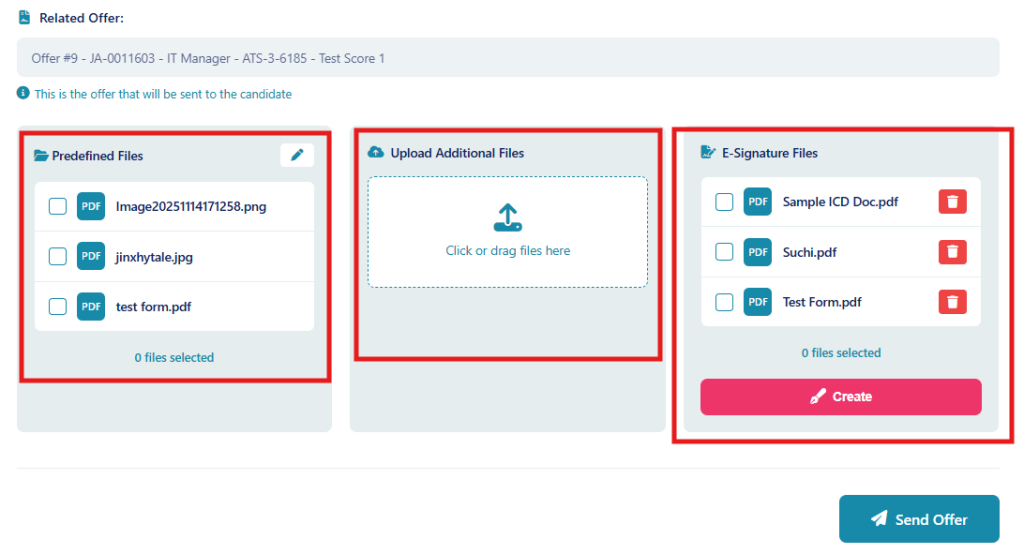
- Optional: Select predefined files (e.g., Employee Handbook), upload additional documents e.g benefit handbook, and or create your e-signature files that require candidate to review and sign..
- Note: If attached files require a signature, you must click Create Form for that specific file and follow the same E-Signature setup steps .
- Review the email and click Send .
4. Summary of Outcome
When the E-Signature process is completed correctly:
- The candidate receives an offer letter with secure digital signature capabilities .
- Internal teams avoid manual document handling and external signature tools .
- System Behavior Note: Signed documents are only saved and visible in the application record after the candidate signs the offer. If the candidate declines or does not sign, the document will not be saved .