
Offer Stage
Last updated
1. Overall Process & Purpose
What This Stage Does
The Offer Stage is where recruiters generate, review, and send a formal job offer to an approved applicant. This stage creates an ATS Offer record, populates an offer letter PDF using predefined templates, and manages offer acceptance or decline.
Why This Stage Exists
The Offer Stage exists to:
- Standardize how offers are created and issued
- Ensure accuracy and consistency in offer letters
- Maintain a documented negotiation and acceptance trail
- Control progression into the Hired stage
Value Provided
- Recruiters can generate compliant, repeatable offer letters
- Hiring Managers gain visibility into compensation and terms
- HR benefits from structured offer records and audit-ready documentation
2. Definitions
| Term | Definition |
|---|---|
| Generate Offer | Button that initiates offer creation |
| ATS Offer Record | Record storing offer details and status |
| PDF Template | Pre-configured offer letter with merge fields |
| Generate PDF | Action that creates the offer letter document |
| Send Offer | Action that emails the offer letter to the applicant |
| Offer Accepted | Status indicating candidate acceptance |
| Offer Declined | Status indicating candidate rejection |
| Offer Made | Status indicating an offer has been sent |
3. Step-by-Step Directions
Step 1: Start the Offer Process
- Open the applicant’s Job Application
- Confirm the application is in the Offer stage
- Click Generate Offer
You will be redirected to the ATS Offer Form.

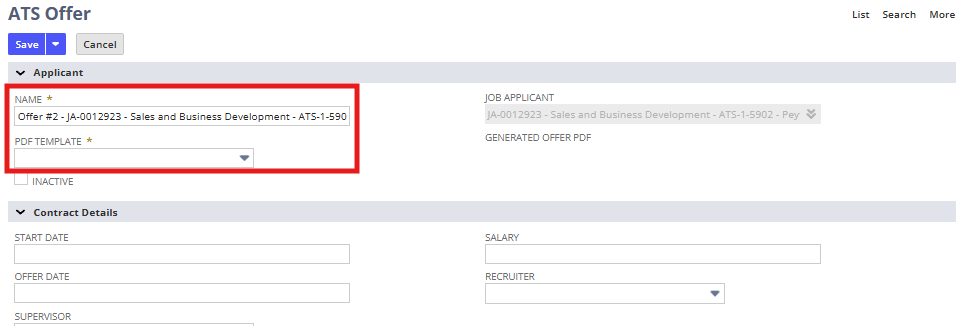
Step 2: Complete the ATS Offer Form
Required vs Optional Fields
- Fields marked with a red asterisk are required
- Some fields auto-populate, including:
- Applicant Name
- Job Applicant
- Subsidiary (based on workflow configuration)
Step 3: Select the Offer PDF Template
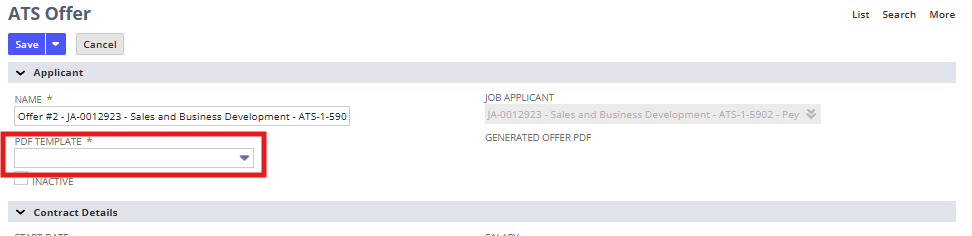
- In the PDF Template field, select the appropriate template (e.g., Contingent Offer)
- The selected template controls the structure and merge fields of the offer letter
Step 4: Enter Contract Details
Required and commonly used fields include:
- Start Date
- Offer Date
- Return Date
- Salary
- Job Title
- Supervisor (Report To)
- Semi-Monthly Salary
These values populate directly into the offer letter.
Step 5: Save the Offer and Generate the PDF
- Click Save
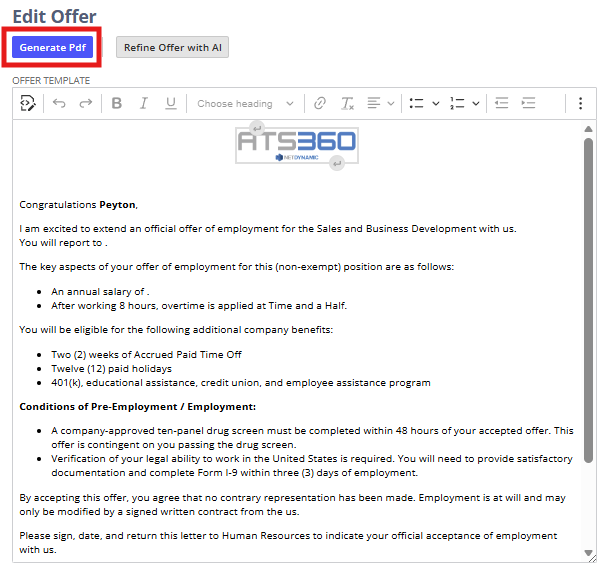
- On the ATS Offer record, click Generate PDF
- Review the offer letter carefully on newly populated Viewer
If corrections are needed:
- Click Edit Offer
- Update fields
- Save and regenerate the PDF
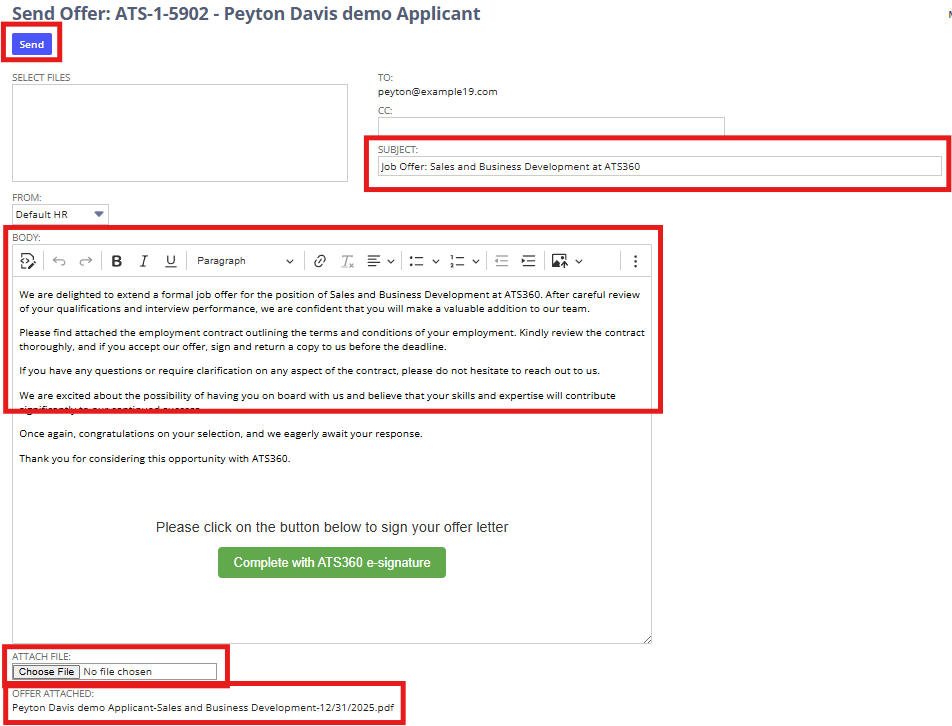
Step 9: Send the Offer
- Click Send Offer from the ATS Offer page
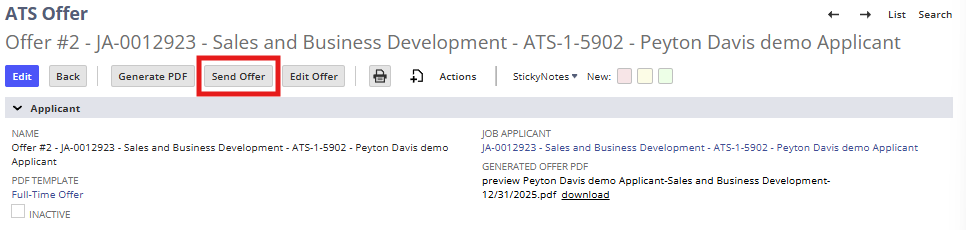
- Review the pre-populated email:
- Subject
- Recipient
- Attached offer PDF
- Add CCs or attachments if needed
- Click Send
- Click Offer Made
Step 10: Handle Revisions or Negotiations
If terms change:
- Return to the ATS Offer record
- Edit the offer fields
- Regenerate the PDF
- Resend the offer email
Step 11: Record Offer Acceptance or Decline
- Select Offer Accepted or Offer Declined
- If declined, enter a decline reason

Upon acceptance, the Next Stage: Hired button becomes available.

4. Summary of Outcome
When the Offer Stage is completed correctly:
- A formal offer letter is generated and sent
- Offer terms are documented in the ATS Offer record
- Negotiations and revisions are traceable
- Acceptance or decline is clearly recorded
- The applicant is eligible to move to the Hired stage
The Offer Stage ensures accurate, consistent, and auditable offer management within ATS360.