
Using the Hiring Manager Portal
Last updated
1. Overall Process & Purpose
What This Feature Does
The Hiring Manager Portal is a simplified interface that allows hiring managers to view assigned job postings, review candidate applications, and provide feedback without logging into the full NetSuite or ATS360 system
Why This Feature Exists
This feature exists to bridge the gap between recruiters and decision-makers. It engages hiring managers who are not heavily involved in day-to-day recruitment but are essential for reviewing resumes, interviewing, and making hiring decisions
Value Provided
- Recruiters save time by eliminating manual communication (emailing resumes) and getting direct feedback within the system
- Hiring Managers gain a focused view to screen candidates, access interview questions, and submit feedback without navigating complex HR software
- HR ensures all comments, rejections, and progression steps are documented centrally on the application record
2. Definitions
| Term | Definition |
|---|---|
| Hiring Manager Portal | A dedicated, limited-access dashboard for hiring managers to review jobs and candidates |
| Job Tile | The visual representation of a job opening on the portal dashboard, displaying title, type, and status |
| AI Match Score | A score visible on the candidate list indicating how well the applicant matches the job description |
| View Details | Button used to access the full candidate profile, including resume, skills, and screening answers |
| Interview Feedback | A sidebar section where managers can view past feedback and submit new notes and recommendations |
3. Step-by-Step Directions
Step 1: Granting Access (Recruiter Action)
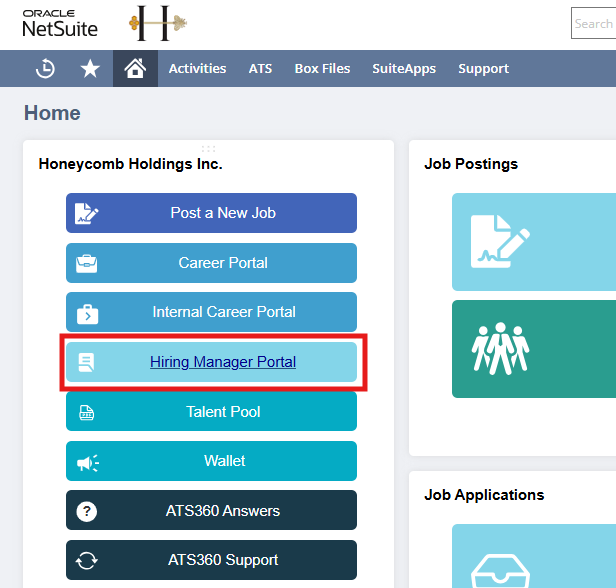
- Navigate to the ATS360 main dashboard.
- Click the Hiring Manager Portal button
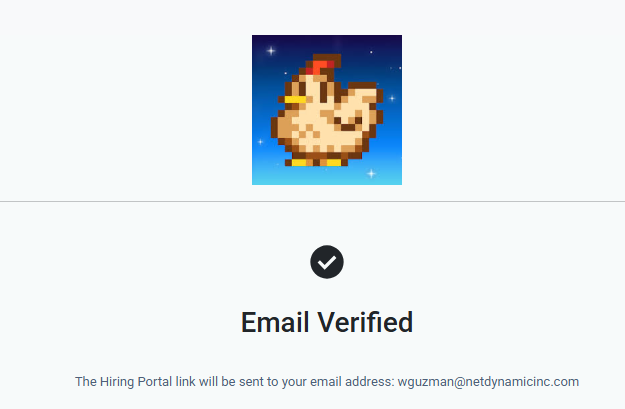
- Enter the hiring manager’s email address in the verification prompt
- Click Submit
Important: The hiring manager must have a valid license and be assigned to the specific Job Posting in the system for this to work. If the email is incorrect or unlicensed, verification will fail
Step 2: Accessing the Portal (Hiring Manager Action)
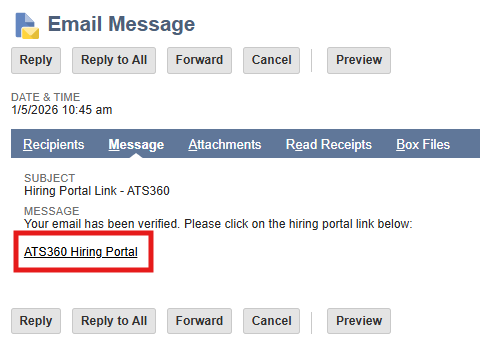
- The hiring manager receives an email with a secure access link
- Click the link to open the Hiring Manager Portal
- The dashboard will display all job postings assigned to that user in the form of Job Tiles
Step 3: Managing Job Postings
- Locate a Job Tile to view the Job Title, Type (Full-time/Contract), and Status
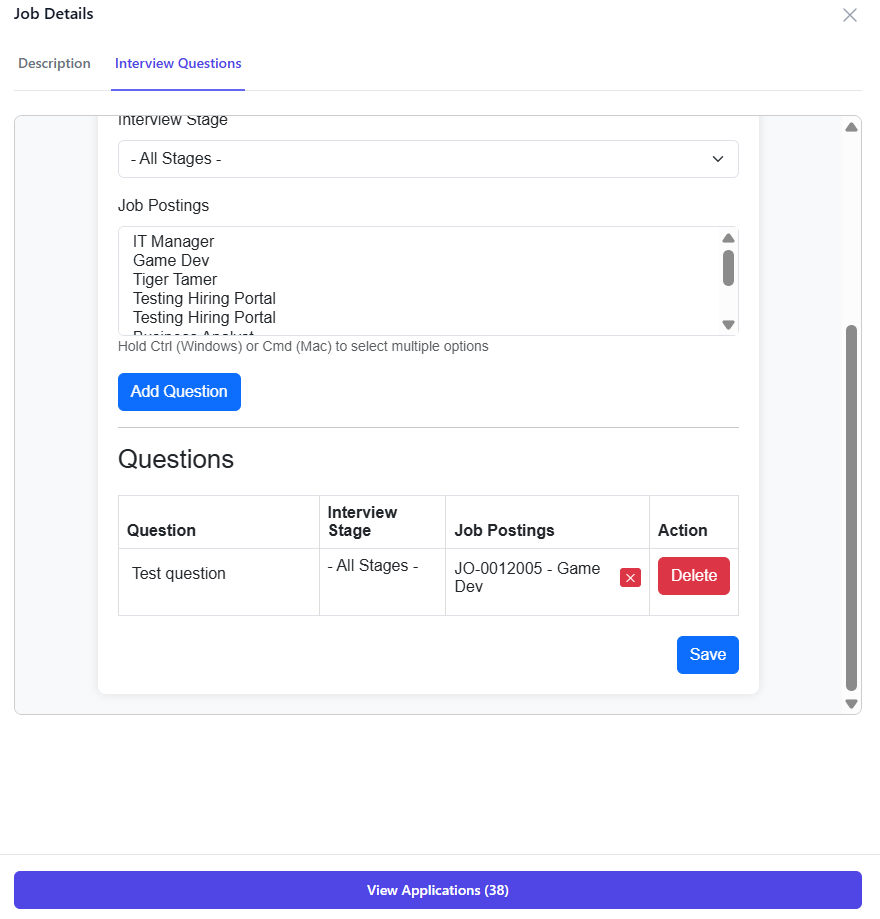
- Click Show More to view the Job Description and Interview Questions
- Manage Questions:
- View existing questions visible to all interviewers
- Add new questions, delete existing ones, or create question sets for specific stages
Step 4: Reviewing Applications
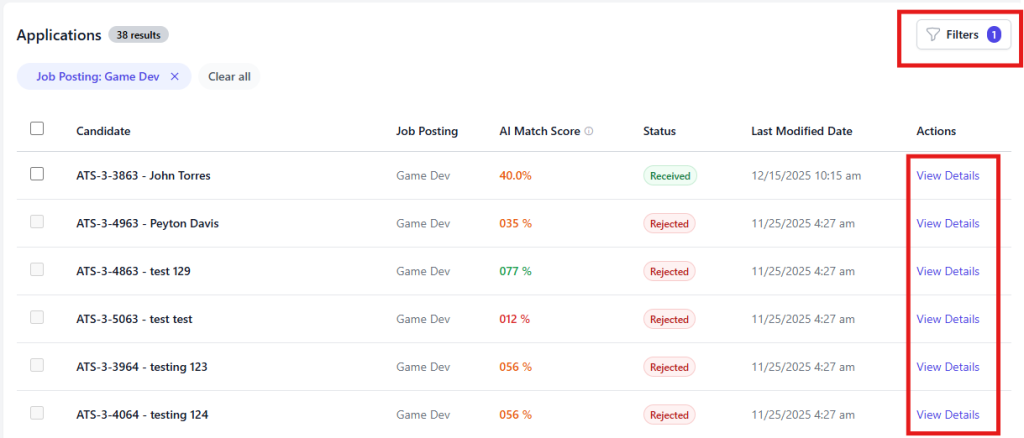
- Click the View Application tab at the bottom of a Job Tile
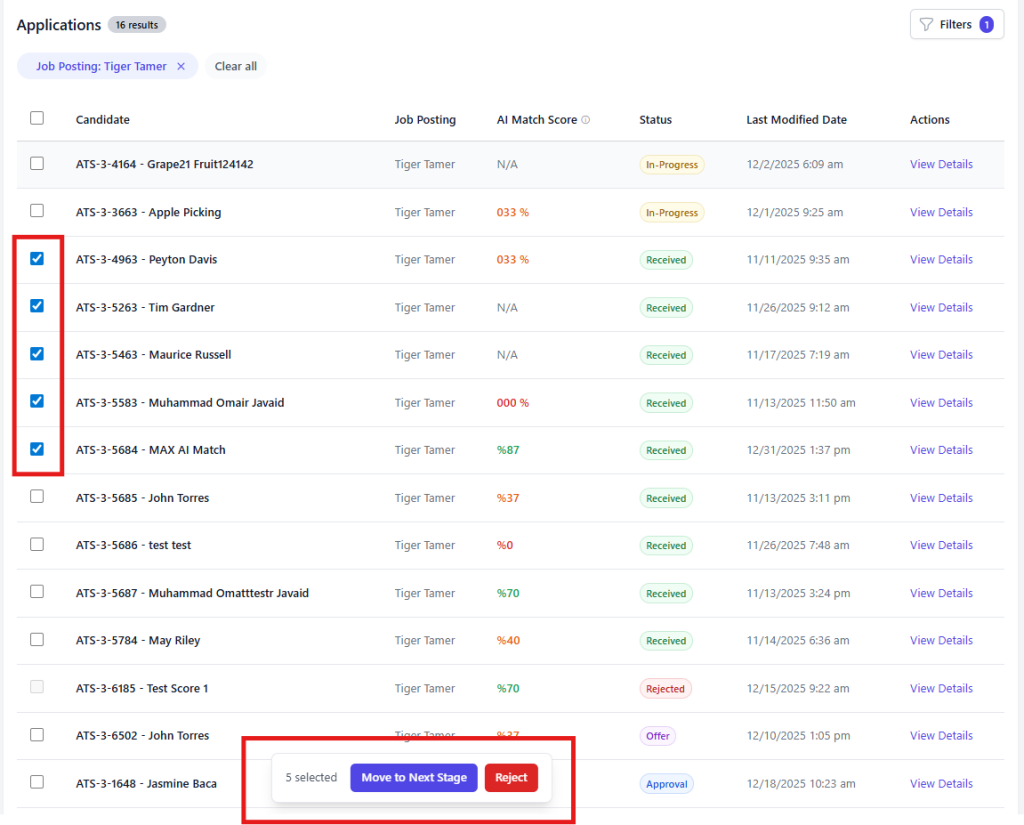
- Review the list of candidates, including Name, AI Match Score, Status, and Last Modified Date
- Filter Candidates (Optional): Click the Filters button in the top right to sort by Status (e.g., Received, In Progress), Job Posting, or Department
- Click View Details under the Action column to open a specific candidate's profile
Step 5: Candidate Actions & Feedback
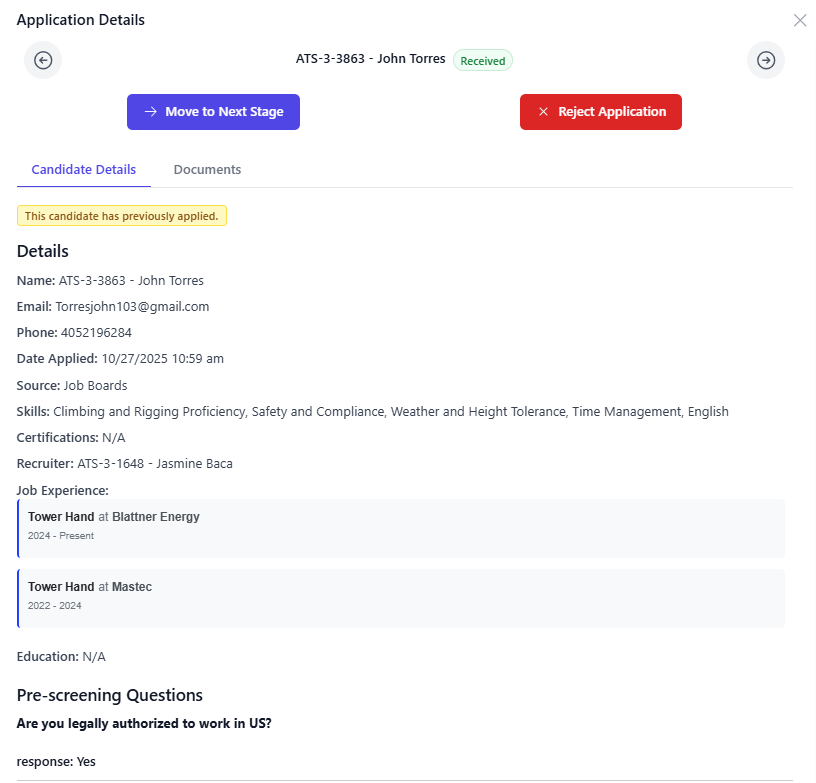
Once inside a candidate's profile, the hiring manager can perform the following:
- Review Details: View contact info, skills, experience, education, and pre-screening question responses
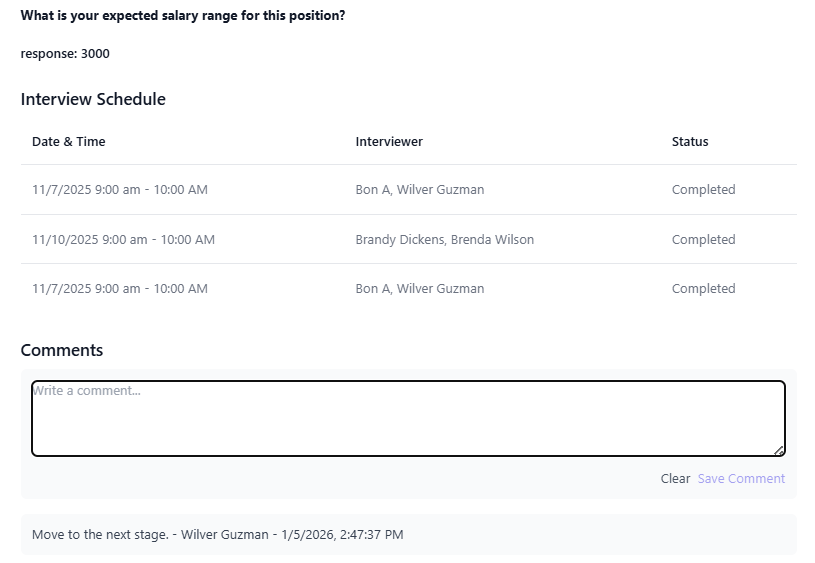
- Add Comments: Type feedback in the text box and save. This is immediately visible to the recruiter
- Move Candidates (Bulk):
- Select multiple candidates using the checkboxes
- Click to move them from Received to In Progress
- Note: Managers can only move candidates to In Progress, not further
- Reject Candidates: Select a candidate (at any stage) and click the Reject button at the bottom of the screen
Step 6: Submitting Interview Feedback
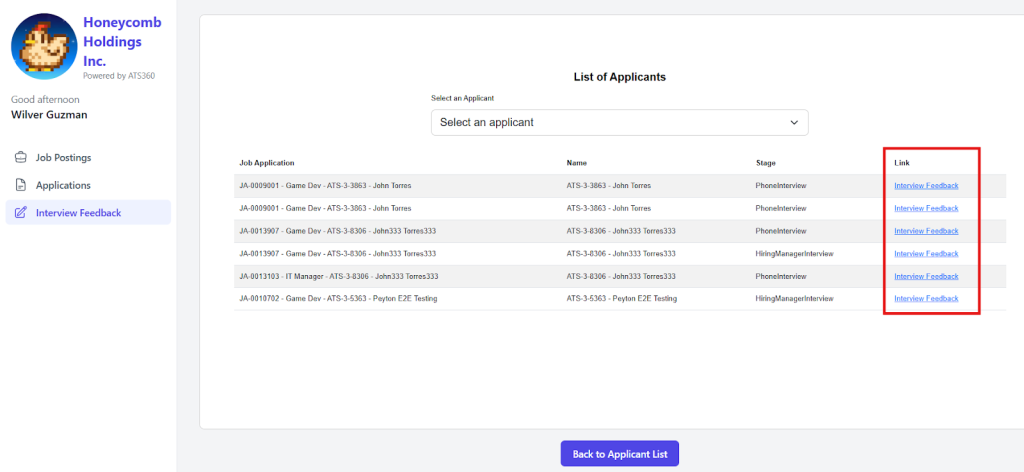
- Click Interview Feedback on the left-side navigation bar
- View a list of candidates interviewed and the stage details
- Click the link to the Feedback Form
- Enter interview notes, provide a recommendation, and submit the form
4. Summary of Outcome
When the Hiring Manager Portal workflow is used correctly:
- Hiring managers have reviewed applications and filtered out unqualified candidates
- Qualified candidates are moved to the In Progress stage for the recruiter to action
- Feedback, comments, and rejections are captured directly in ATS360 without external emails
Note: The portal allows data review and internal feedback but does not allow the hiring manager to communicate directly with the candidate